Hermes Agent Discord Bot Not Responding: Fixes
Your Hermes Agent Discord bot is online but silent? The four causes behind almost every case, and the exact fix for each one.
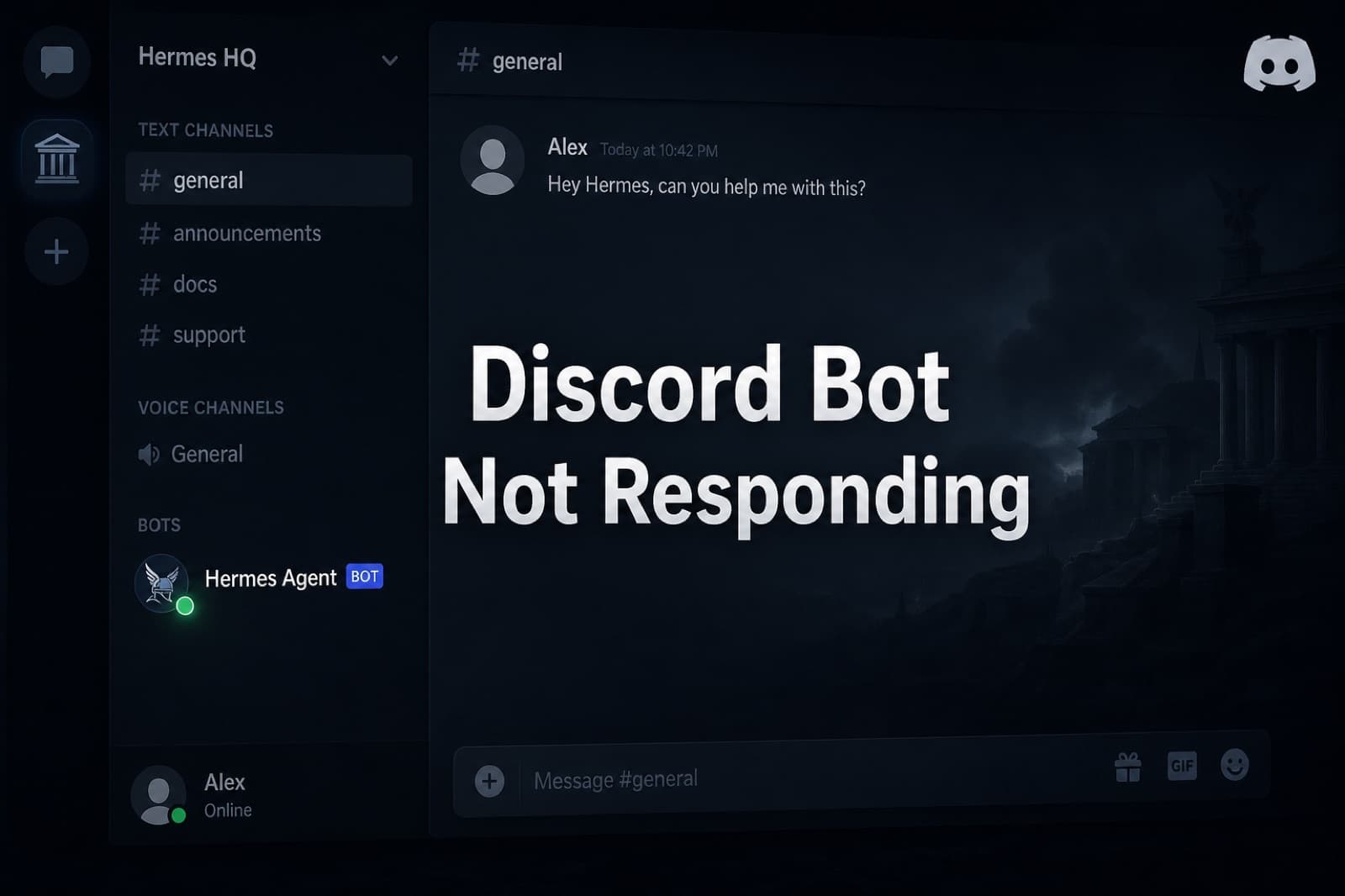
Your Bot Is Online and Ignoring You
The green dot is on. The bot appears in your server's member list. You @mention it, you send a slash command, you type a plain message, and nothing comes back. No error in the logs, no reply in the channel. Discord shows the bot as up, and Hermes Agent shows the gateway as connected.
Almost every case we see reduces to one of four causes. Three of them are silent by design, which is why the bot looks healthy while doing nothing. This post walks through each one, how to confirm it is your problem, and the exact fix.
Cause 1: Message Content Intent Is Disabled
This is the single most common cause of a Discord bot that connects and then ignores every plain message. Symptom: your slash commands work but nothing happens when you type a normal message or reply. Your logs show incoming MESSAGE_CREATE events, but the content field on each one is an empty string.
What is happening: Message Content is a privileged gateway intent. Discord ships it disabled by default. Without it, your bot receives every message event but is not allowed to see the text, so any handler that tries to match a keyword, a mention, or a prefix silently fails.
The fix: open the Discord Developer Portal, pick your application, open Bot in the sidebar, scroll to Privileged Gateway Intents, and toggle Message Content Intent on. Save.
For bots in fewer than 100 servers no approval is needed, the toggle takes effect immediately. Above 100 servers you need to submit for verification and Discord approves the intent request separately.
You do not need to restart Hermes Agent after the toggle. The next incoming message will arrive with the content field populated.
Cause 2: You Invited the Wrong Application
This one hurts because everything looks correct. There is a bot user in your server, it is online, and it has the right avatar. But no matter what you type, it never answers.
What is happening: you probably created multiple Discord applications while setting up (a test one, a real one, one you renamed), and the invite URL you actually used points at a different application from the one whose token Hermes Agent is running with. Discord happily connects both apps to the gateway, they both show as online, but only the one your token belongs to receives events from your specific server, and if that app is not invited to your server, it receives nothing.
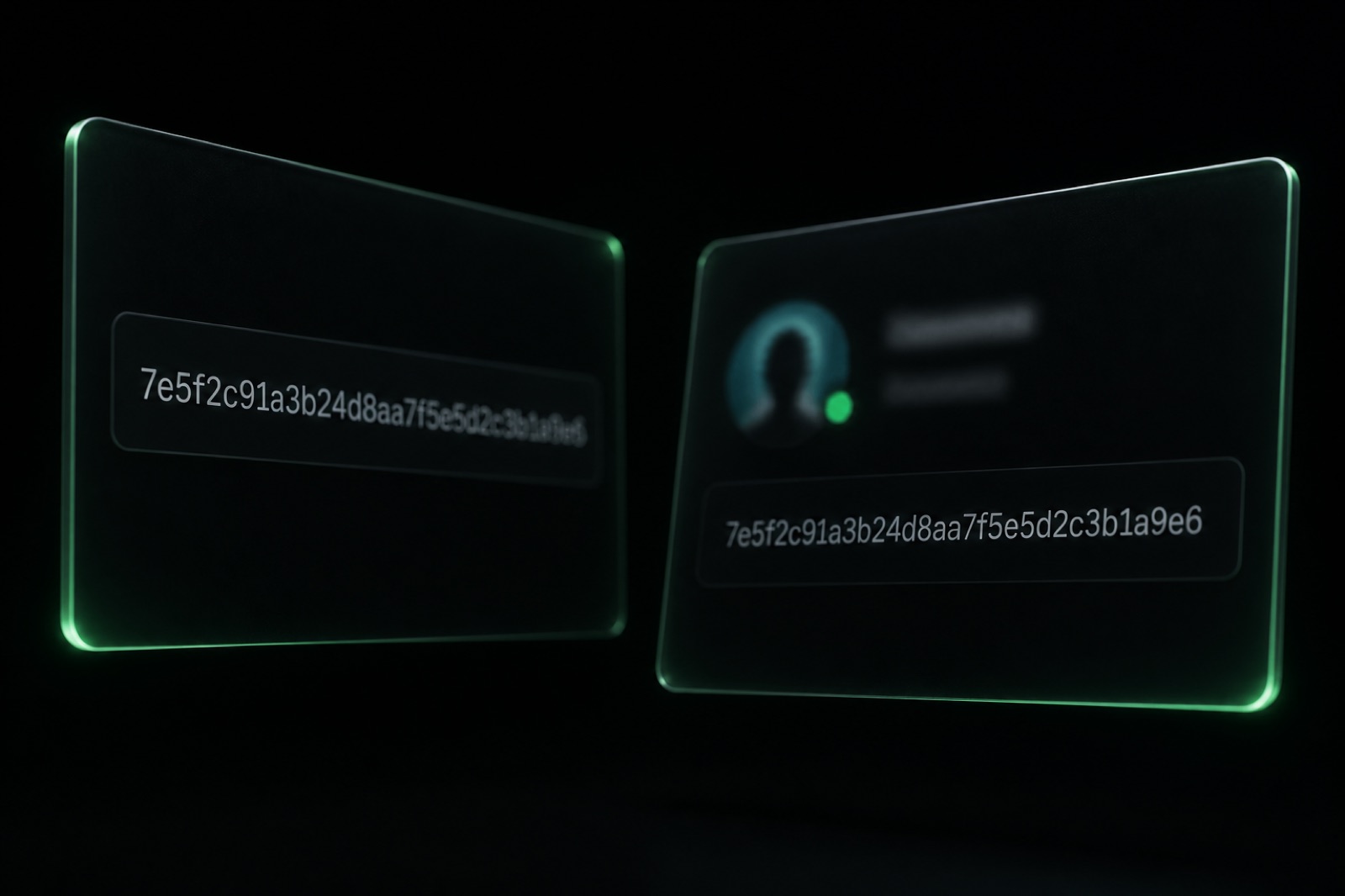
Check first: in the Developer Portal, open the application whose token is in your Hermes Agent .env, and copy the Application ID from General Information. Then in your Discord server, right-click the bot in the member list and choose Copy User ID. If those two IDs do not match, you invited a different app.
The fix: regenerate the OAuth2 invite URL for the correct application (see Cause 3 for the exact scopes), kick the wrong bot from your server, and invite the right one. Confirm the IDs match before you move on.
Cause 3: The Invite Was Missing bot or applications.commands
If your bot appears in the server but never receives slash commands, or does not appear as a real bot user at all, the OAuth2 invite URL was generated with the wrong scopes.
Discord's OAuth2 requires two separate scopes for a full bot install:
bot, which is what makes the invited application a bot user in the server.applications.commands, which is what allows the bot to register and receive slash commands.
Miss the first and Discord installs the app as an integration rather than a bot member, and the token has nothing to attach to. Miss the second and the bot is a real member but slash commands never register, so /whatever returns This interaction failed or does not autocomplete at all.
The fix: in the Developer Portal go to OAuth2 in the sidebar, click URL Generator, tick both bot and applications.commands in the Scopes section, then in the Bot Permissions panel that appears below, tick at minimum:
Send MessagesRead Message HistoryEmbed LinksAttach FilesUse Slash Commands
Copy the generated URL from the bottom of the page, open it in a browser, pick your server, and confirm. A minimal valid URL looks like:
https://discord.com/oauth2/authorize?client_id=<APPLICATION_ID>&scope=bot+applications.commands&permissions=277562616896
If your bot needs to join voice channels for TTS replies, also tick Connect and Speak in the permissions grid, and re-invite. Discord upgrades the existing membership rather than adding a duplicate.
Cause 4: The Channel Denies the Bot's Role
Server-wide permissions are only half of the story. Discord layers channel and category overrides on top of the role grants, and a single channel-level deny on Send Messages or Read Message History will silently mute a bot that works everywhere else in the server.
Symptom: your bot replies in some channels but is silent in others. Or the bot is silent in every channel, but only in this one server, even though the same bot works in your test server.
What is happening: channel overrides beat role permissions. If someone on your server denied Send Messages for @everyone on this channel, or restricted it to a role your bot does not have, your bot cannot post there even with server-wide Send Messages granted. Read Message History is a separate permission from View Channel, so a bot can see a new message arriving and still fail to reply if history is denied, since some Hermes Agent skills fetch recent context before answering.
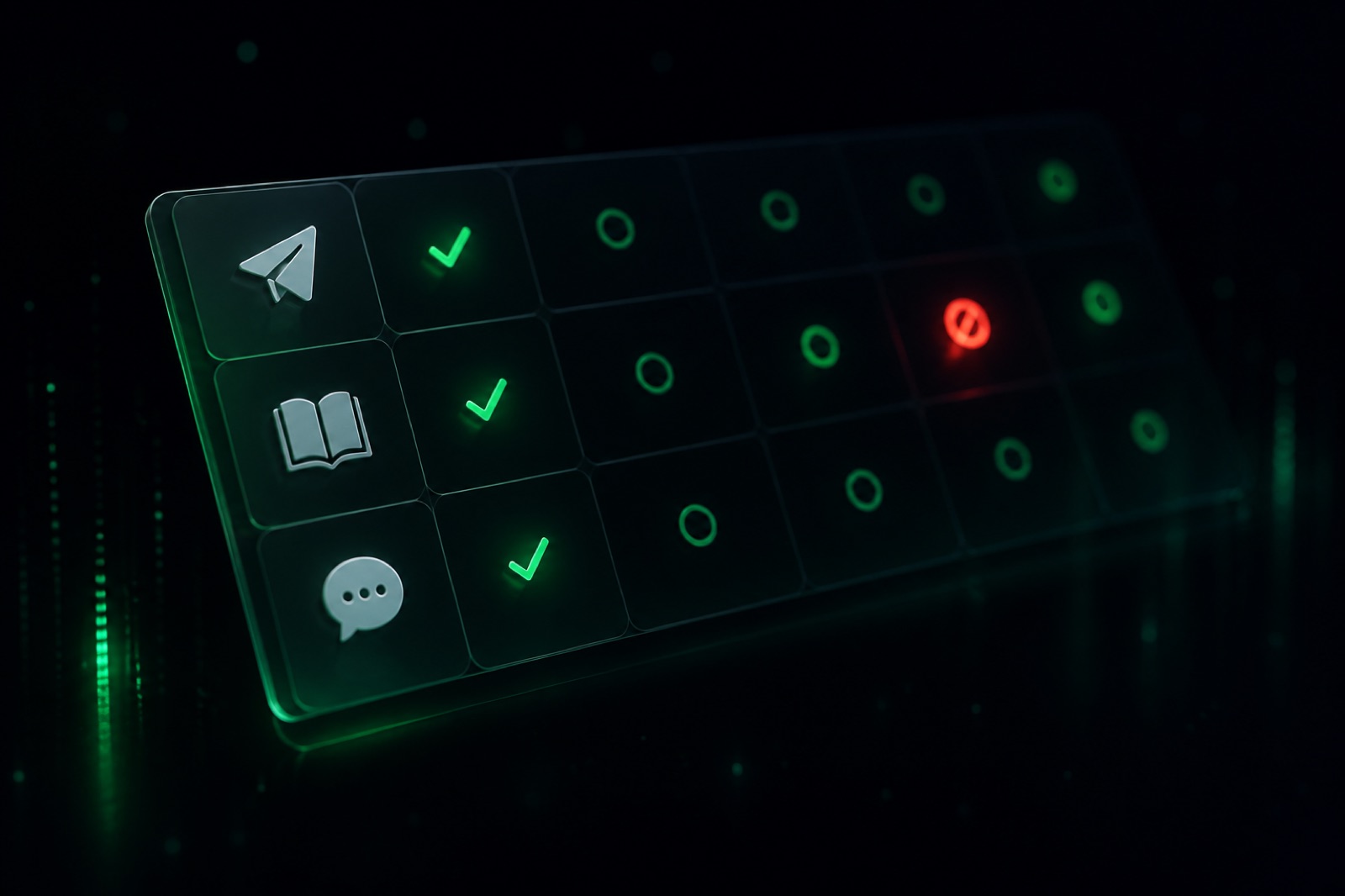
Check first: right-click the affected channel, Edit Channel, Permissions, and look at your bot's role (or @everyone if the bot has no assigned role). You are looking for a red X on any of: View Channel, Send Messages, Read Message History, Send Messages in Threads, Use Application Commands.
The fix: either add an explicit ✓ for the bot's role on the affected channel, or remove the deny at the category level (category denies cascade to every channel inside them). If your bot needs to reply inside threads, Send Messages in Threads is a distinct permission and needs its own grant. See the Discord support thread on channel overrides for the full override precedence rules.
Diagnostic Order That Saves Time
When a bot goes silent, work through the causes in this order rather than jumping to the flashiest fix:
- Compare application ID and bot user ID. Sixty seconds, catches the wrong-app case before you touch anything else.
- Check Message Content Intent. Sixty seconds in the Developer Portal, fixes the largest category of silent bots in one toggle.
- Look at your incoming events. If you run Hermes Agent with
HERMES_LOG_LEVEL=debug, you will see whether the bot is receiving events at all, and whether thecontentfield on message events is empty. - Re-check invite scopes. If slash commands are the symptom, this is almost always the answer. Re-invite with both scopes ticked.
- Audit channel overrides. Only worth doing after the first four are ruled out, because it is the slowest to check and the least common cause when the bot is silent everywhere.
For the full first-time Discord install path, see the Hermes Agent Discord setup guide. If your bot is not connecting to Discord at all (rather than connecting and going silent), the Hermes Agent Docker container keeps restarting post covers gateway crash loops.
When You Would Rather Not Fight Discord Every Week
Discord's intents, scope model, and per-channel override matrix are what they are. If your read is that a plain conversational agent should not require an OAuth flow and a privileged intent review to say hello back, get started with Hermify. Hermify runs a managed Hermes Agent on Telegram with the same memory and skills, live in about a minute, with no gateway configuration to babysit.
Sources
Run Your Own Hermes Agent
Bring your API key, connect Telegram, and get a self-improving AI agent live in 60 seconds.
Get Started