How to Run Hermes Agent in Docker (Self-Hosted)
Deploy Hermes Agent in Docker with persistent volumes, docker-compose, and a production-ready setup. Covers data, secrets, ports, and upgrades.
Why Docker Is the Default Way to Run Hermes Agent
Hermes Agent ships as a Docker container as its first-class deployment target. The image bundles the gateway, the dashboard, the runtime dependencies, and a sane default configuration so you do not have to wrestle with Python versions, system libraries, or PATH issues on the host. You bring a host with Docker installed, a small persistent volume for state, and your provider API key. The container does the rest.
A typical self-hosted setup looks like this:
- One gateway container exposing port 8642 for the OpenAI-compatible API and the health endpoint.
- One persistent named volume for sessions, memory, learned skills, and configuration.
- One
.envfile with provider keys and Telegram credentials. - Optionally, a sidecar dashboard container reading the same data directory in read-only mode.
Everything else - upgrades, restarts, log rotation - is handled by Docker itself. This post walks through that setup end to end, then shows the production-ready docker-compose layout and the gotchas worth knowing before you put the agent on a public host.
If you have not chosen between hosting it yourself and a managed setup, read self-hosting vs managed Hermes Agent first. The rest of this guide assumes you have decided to run the container yourself.
Prerequisites
You need:
- A host with Docker 24+ installed (Linux VPS, macOS via Docker Desktop, or Windows via WSL2).
- At least 1 vCPU and 2 GB of RAM. The official recommendation is 2 vCPU and 8 GB for comfortable concurrent use.
- A provider API key (OpenAI, Anthropic, OpenRouter, or any OpenAI-compatible endpoint).
- About 2 GB of free disk space for the image, plus growth room for the data volume.
A $5 VPS from any reasonable provider clears the minimum. The agent is I/O-light and CPU-light when not actively reasoning - most of its day is spent idle waiting for Telegram messages or scheduled tasks.
Step 1 - Create the Data Directory
The container persists everything to /data inside the image. On the host, decide where that directory lives. The convention is ~/.hermes/data:
mkdir -p ~/.hermes/data
This single directory holds session history, vector memory, learned skills, encrypted secrets, and the user config. Back this up and you have backed up the entire agent. Lose it and you start from scratch - the container itself is ephemeral.
Step 2 - First-Run Setup Wizard
Run the container interactively the first time so it can prompt you for keys and write them to ~/.hermes/.env:
docker run -it --rm \
  -v ~/.hermes:/root/.hermes \
  -v ~/.hermes/data:/data \
  ghcr.io/nousresearch/hermes-agent:latest setup
The wizard asks for:
- The default LLM provider (OpenAI, Anthropic, OpenRouter, custom).
- The provider API key.
- Optional Telegram bot token and allowed-users list.
- Optional voice provider keys (only if you plan to enable voice mode).
The values are written to ~/.hermes/.env on the host. Treat that file as a secret - chmod 600 ~/.hermes/.env and never commit it.
Step 3 - Run the Persistent Gateway
Once the wizard has finished, the long-running form of the same container starts the gateway:
docker run -d \
  --name hermes \
  --restart unless-stopped \
  -p 8642:8642 \
  --env-file ~/.hermes/.env \
  -v ~/.hermes/data:/data \
  ghcr.io/nousresearch/hermes-agent:latest gateway
Breakdown of each flag:
-druns the container detached, in the background.--restart unless-stoppedbrings it back automatically after host reboots and crashes.-p 8642:8642exposes the OpenAI-compatible API and the/healthendpoint.--env-file ~/.hermes/.envinjects provider keys without baking them into the image.-v ~/.hermes/data:/datais the persistence line - delete this line and the agent forgets everything every restart.
Verify it is healthy:
curl http://localhost:8642/health
# {"status":"ok","gateway":"running"}
If you are running on a VPS that you want to reach from your laptop, do not bind the port to 0.0.0.0 directly. Put a reverse proxy (Caddy, Nginx, Traefik) in front with HTTPS, or only expose the port over Tailscale or WireGuard. The OpenAI-compatible API has no auth by default - it trusts the network it is on.
Step 4 - Use docker-compose for Production
For anything beyond a quick test, switch to docker-compose.yaml. It makes the configuration reviewable, restartable as a unit, and easy to extend with the optional dashboard sidecar:
services:
  gateway:
    image: ghcr.io/nousresearch/hermes-agent:latest
    container_name: hermes-gateway
    restart: unless-stopped
    command: gateway
    ports:
      - "127.0.0.1:8642:8642"
    env_file:
      - ./.env
    volumes:
      - hermes_data:/data
    healthcheck:
      test: ["CMD", "curl", "-f", "http://localhost:8642/health"]
      interval: 30s
      timeout: 5s
      retries: 3
    deploy:
      resources:
        limits:
          memory: 1G

  dashboard:
    image: ghcr.io/nousresearch/hermes-agent:latest
    container_name: hermes-dashboard
    restart: unless-stopped
    command: dashboard
    ports:
      - "127.0.0.1:8643:8643"
    volumes:
      - hermes_data:/data:ro
    depends_on:
      gateway:
        condition: service_healthy

volumes:
  hermes_data:
A few details worth noting:
- The dashboard container mounts the data volume read-only (
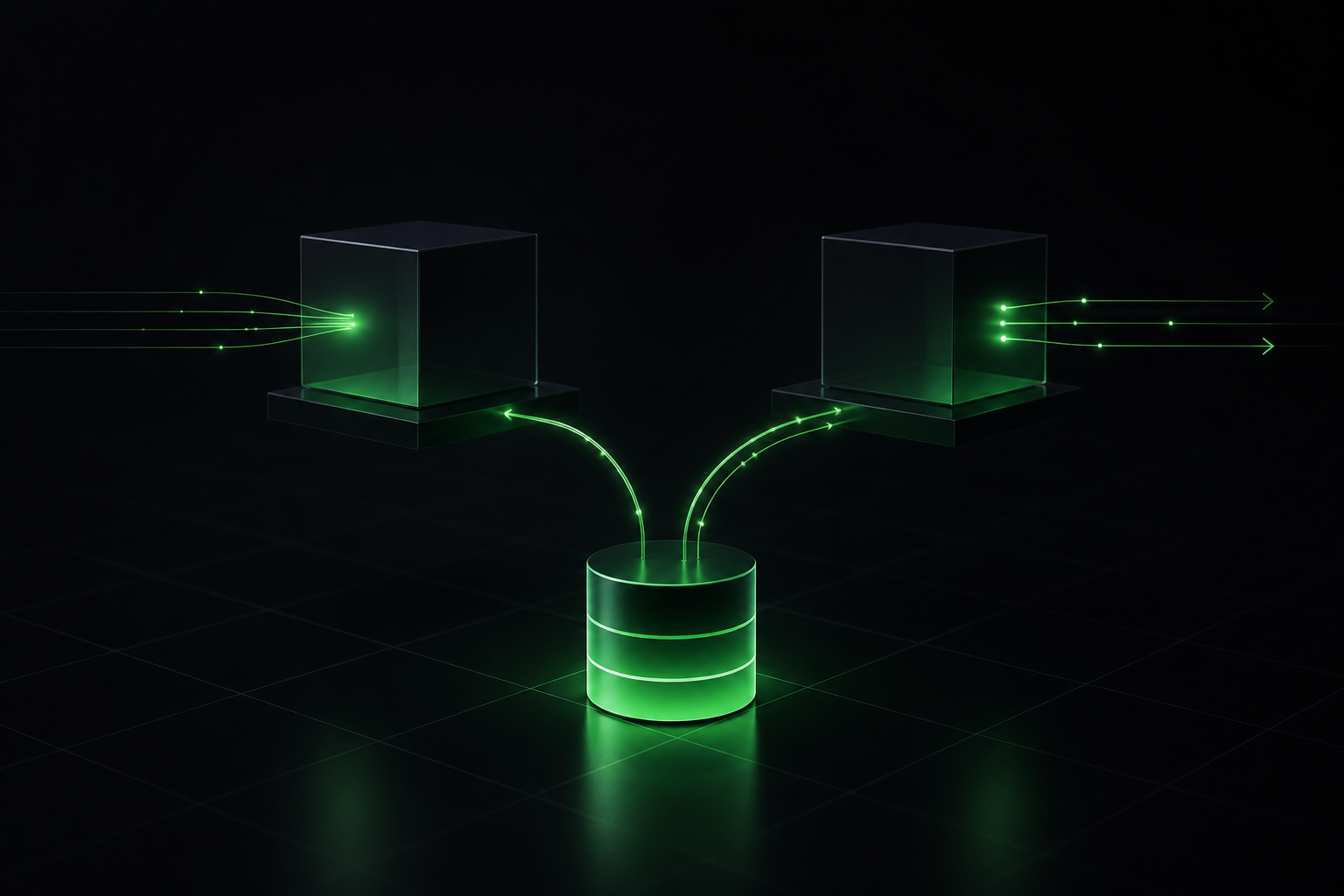
:ro). It only reads sessions and memory to render the UI, never writes them. That is what makes running both safely possible. - The gateway port is bound to
127.0.0.1on the host. Public exposure is the reverse proxy's job, not Docker's. healthcheckletsdepends_onwait for the gateway before starting the dashboard.- A 1 GB memory limit is comfortable for most personal-scale workloads. Bump it for high-traffic use.
Bring the stack up with docker compose up -d and tail logs with docker compose logs -f.
Step 5 - Upgrades
The container is the unit of upgrade. To move to a new release:
docker compose pull
docker compose up -d
Compose recreates the gateway with the new image while keeping the named volume intact. Memory, skills, and Telegram connections come back exactly as they were. Pin to a specific tag instead of latest for production - ghcr.io/nousresearch/hermes-agent:0.42 rather than :latest - so upgrades are explicit.
Before any upgrade, snapshot the volume:
docker run --rm \
  -v hermes_data:/data \
  -v $(pwd):/backup \
  alpine tar czf /backup/hermes-$(date +%F).tar.gz -C /data .
Restoring is the same command in reverse. This is faster and safer than rolling back the image alone.
Common Pitfalls
Two gateway containers on the same volume. Hermes session and memory stores assume a single writer. Running two gateway containers against the same /data will corrupt files within minutes. The dashboard sidecar is fine because it is read-only.
Missing --env-file. Without it, the container starts but fails the first LLM call with a 401. Check docker logs hermes if responses never arrive.
Binding to 0.0.0.0:8642 on a public VPS. The API has no built-in auth. Always front it with a reverse proxy that requires HTTPS plus either basic auth or a network-level restriction (Tailscale, firewall rules).
Anonymous volumes. If you forget the -v ~/.hermes/data:/data line, Docker creates an anonymous volume. It survives restarts but is hard to find and easy to prune accidentally. Always use a named volume or a host bind.
Telegram bot reconnection. When you upgrade, the bot reconnects automatically. If it does not, check that TELEGRAM_BOT_TOKEN is still in .env and that the container has internet egress.
For Telegram-specific issues, Hermes Agent Telegram troubleshooting covers the messaging side in more depth.
Skip the Container Plumbing
Running Hermes in Docker is straightforward, but you still own the host: backups, TLS certs, log rotation, OS patches, and the upgrade cadence. For a personal agent that is fine - a Sunday afternoon of setup and maybe ten minutes a month afterward.
If you would rather skip all of that, Hermify runs your Hermes agent in an isolated managed container, with encrypted-at-rest secrets, automatic upgrades, daily volume snapshots, and Telegram connected through the dashboard in two taps. You bring a provider key; the platform handles everything below.
Sources
Run Your Own Hermes Agent
Bring your API key, connect Telegram, and get a self-improving AI agent live in 60 seconds.
Get Started