Run Hermes Agent As An Email Assistant
Set up Hermes Agent as an email assistant with IMAP and SMTP. App passwords, allowlist security, threading, attachments, and managed options.
Why Email Is An Underrated Interface For An AI Agent
Telegram, Slack and Discord get most of the attention when people talk about deploying an AI agent on a real surface. Email is older and quieter, but it has one property the chat apps do not: every device on the planet already speaks it natively, and every workflow you already have - tickets, invoices, alerts, intake forms, vendor confirmations - eventually lands in an inbox.
Running Hermes Agent as an email assistant turns that inbox into a conversation. You forward a thread to your agent, it reads the full context, and it replies in-thread with the same persistent memory it uses on Telegram or in the terminal. No new client, no API to call, no extra app to install for the people you forward messages to.
This guide walks through the exact setup: dedicated email account, app password, the EMAIL_* variables Hermes expects, the allowlist that keeps strangers out, and the threading rules that make replies look human. At the end you can Get started with Hermify if you want the managed version instead of operating IMAP credentials by hand.
What The Email Adapter Actually Is
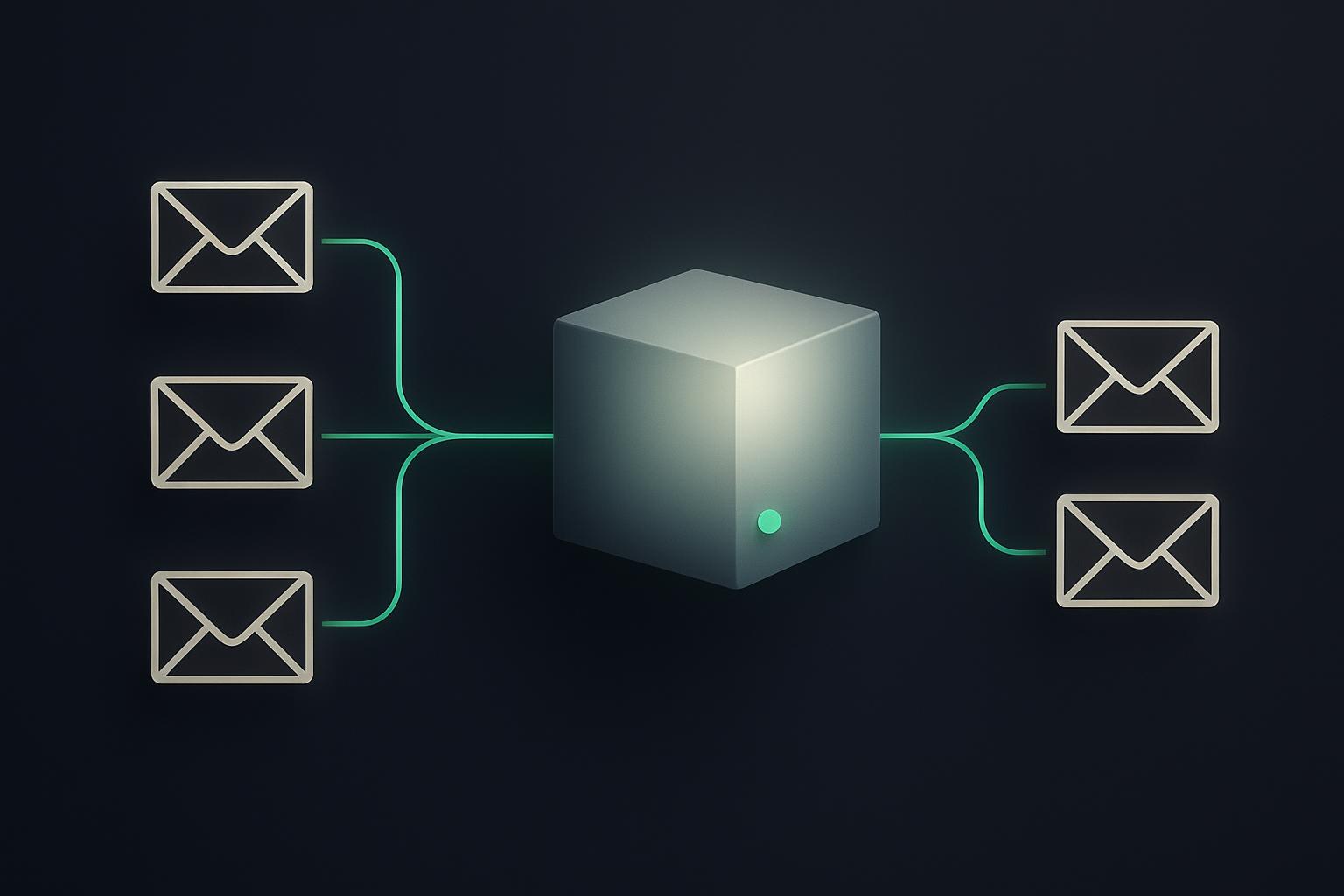
Hermes ships an Email gateway built on Python's standard imaplib, smtplib and email modules. There are no extra packages, no third-party SaaS in the path, and no message broker in front of it. The adapter is a polling loop that:
- Connects to your IMAP server over SSL.
- Pulls
UNSEENmessages from the inbox at a configurable interval. - Hands the body (and any allowed attachments) to the agent runtime as a user message.
- Posts the reply back through SMTP with proper
In-Reply-ToandReferencesheaders so the thread stays threaded.
Because it speaks raw IMAP and SMTP, it works with Gmail, Outlook, Yahoo, Fastmail, ProtonMail Bridge, Migadu, or any provider that exposes the standard ports. There is nothing Gmail-specific in the adapter itself, which means you can swap providers without touching the agent.
Before You Start: One Dedicated Account, Always
Do not point Hermes at your personal email. Three reasons:
- The IMAP credentials sit in plaintext in
.env. Anyone who reads that file can read every message you have ever received on that address. - The adapter has full read access to the inbox by design. A bug in a skill could in theory mark messages read, delete drafts, or forward content.
- Cold starts, retries and clock skew can produce duplicate replies. You do not want those landing in a thread with your CEO.
Create a fresh address: [email protected], [email protected], or anything else that costs nothing to throw away. Forward the messages you actually want the agent to see into that address from your real inbox, using a Gmail filter or an Outlook rule. That gives you a hard boundary between "things the agent can touch" and "everything else".
Step 1: Generate A Gmail App Password (Or The Equivalent)
If you are using Gmail, the IMAP/SMTP path needs an App Password, not your normal login password. Google removed the ability to disable IMAP in January 2025, so it is on by default, but Less Secure Apps no longer works and OAuth is overkill for a single account.
The flow:
- Turn on 2-Step Verification at
myaccount.google.com/security. App Passwords do not appear until 2FA is on. - Visit
myaccount.google.com/apppasswords. - Generate a password for "Mail". Google returns a 16-character string in four blocks of four.
- Copy it with the spaces removed. The spaces are visual only and break some clients.
For Outlook/Microsoft 365, the equivalent is at account.microsoft.com/security under "App passwords" (you also need 2FA). For Fastmail, generate a per-app password under Settings > Password & Security. For self-hosted Postfix/Dovecot, just use the SMTP/IMAP password you set when you provisioned the mailbox.
Step 2: Wire Up The Hermes Email Variables
The Email adapter is configured entirely through EMAIL_* environment variables. The minimum viable setup for Gmail is:
# Identity
[email protected]
EMAIL_PASSWORD=abcd1234efgh5678   # 16-char app password, no spaces

# IMAP (incoming)
EMAIL_IMAP_HOST=imap.gmail.com
EMAIL_IMAP_PORT=993               # SSL

# SMTP (outgoing)
EMAIL_SMTP_HOST=smtp.gmail.com
EMAIL_SMTP_PORT=587               # STARTTLS

# Polling
EMAIL_POLL_INTERVAL=15            # seconds
EMAIL_POLL_INTERVAL is the rate at which the adapter asks IMAP for unread messages. The default of 15 seconds is a good balance: low enough to feel responsive, high enough that Gmail does not start throttling you. If you push it below 5 seconds Google will eventually return temporary auth failures and you will spend an hour debugging "wrong password" errors that have nothing to do with the password.
Drop those variables into .env (the file Hermes loads on startup) and chmod 600 .env so it is not world-readable. If you are running Hermes in Docker, mount the file read-only and never bake credentials into the image.
Step 3: Lock The Inbox With An Allowlist
This is the single most important security step in the entire setup, and the one most tutorials skip.
By default, a Hermes agent listening on email will reply to anyone who emails it. If your address is [email protected], anyone who guesses, leaks, or scrapes that string can send commands. Email is publicly addressable. There is no equivalent of Telegram's "users have to start a chat first" filter.
Hermes exposes three modes:
| Mode | Behaviour |
|---|---|
[email protected],[email protected] |
Only those addresses are processed. Everything else is silently dropped. |
| Unset | Unknown senders receive a one-time pairing code they must reply with to be enrolled. |
EMAIL_ALLOW_ALL_USERS=true |
Any sender is accepted. Only use this on a private, never-published address. |
Pick the explicit allowlist for any real deployment:
[email protected],[email protected]
Add yourself plus the handful of people who are allowed to drive the agent. Treat the allowlist the way you treat an SSH authorized_keys file - small, reviewed, and version-controlled in a private repo if possible.
Step 4: Threading And Attachments
When Hermes replies, it sets In-Reply-To and References headers per RFC 2822, and preserves the original Subject prefixed with a single Re: (no Re: Re: Re: chains). The result is that replies land inside the original thread in Gmail, Apple Mail, Outlook web, Spark, and Fastmail. Some older Outlook desktop versions ignore the headers and start a new thread anyway - that is a client bug, not an agent bug.
Attachments work in both directions:
- Inbound: the adapter saves attachments to
~/.hermes/inbox/email/<message-id>/so the agent can read them with its filesystem tools. PDFs are extracted to text via the bundled PDF skill if it is enabled, and images are passed to vision-capable models when the configured provider supports them. - Outbound: skills that produce files can attach them to the reply. The adapter sets a multipart MIME body so receivers see both the text reply and the file.
The practical implication is that you can forward a 40-page contract to your agent, ask it for a summary, and get a reply in the same thread with the summary inline. Pair that with the persistent memory in Hermes Agent memory and skills and the agent remembers the contract three weeks later when you ask "what was that NDA we received in May".

Step 5: Verify End To End
A five-minute smoke test:
- Start Hermes with the new
.env. Watch the logs - the first IMAP poll should logconnectedand anidleline. If you see535 5.7.8 Username and Password not accepted, your app password is wrong or has spaces in it. - Send a plain email from your own (allowlisted) address to the agent. Subject: "ping". Body: "What can you do?".
- Wait one polling interval. The reply should arrive in-thread, with
Re: pingas the subject. - Reply to that reply with a follow-up question. The agent should respond with the previous turn in context, because the gateway threads on
Message-ID. - Send an email from a non-allowlisted address. Confirm nothing comes back. Confirm the logs show a dropped-sender entry, not silent success.
If all five pass, you have a working email assistant.
When To Use AgentMail Instead Of Native IMAP
The native IMAP adapter is the right answer for personal accounts and small teams. There is one case where a separate inbox makes more sense: building user-facing apps where end users send mail to your product and an agent answers them at scale. For that path, the AgentMail MCP server gives the agent a structured inbox per user without touching your real domain. The trade-off is one more vendor in the path; the benefit is per-user separation and a clean API for product analytics.
For everything else - your own assistant, an ops mailbox, an inbound-form agent, a vendor-confirmation triager - native IMAP/SMTP is faster to set up and free.
Or Skip All Of This With Managed Hosting
Every step above is real work. App passwords expire when you rotate 2FA, IMAP providers occasionally lock you out for "suspicious activity" on a fresh login, and a single polling loop on a laptop dies the moment the laptop sleeps. Most of the support load on self-hosted Hermes deployments is exactly this layer: credentials, allowlists, and uptime.
Hermify runs the Hermes Agent runtime as a managed service. Email, Telegram, Slack and Signal all wire up from a dashboard, credentials are encrypted at rest, the polling loop runs on infrastructure that does not sleep, and the agent persists memory across sessions without you maintaining anything. If you want the email surface without the IMAP babysitting, Get started with Hermify and skip Step 1 through Step 5 entirely. If you want to compare deploying email to deploying other surfaces, see the Telegram deployment walkthrough - the trade-offs are very similar.
Sources
Run Your Own Hermes Agent
Bring your API key, connect Telegram, and get a self-improving AI agent live in 60 seconds.
Get Started