Hermes Agent Telegram Not Working? Troubleshooting & Fixes
Fix a Hermes Agent Telegram bot that is silent, rejects messages, or loses context. Check bot tokens, allowed users, gateway settings, and persistent storage.
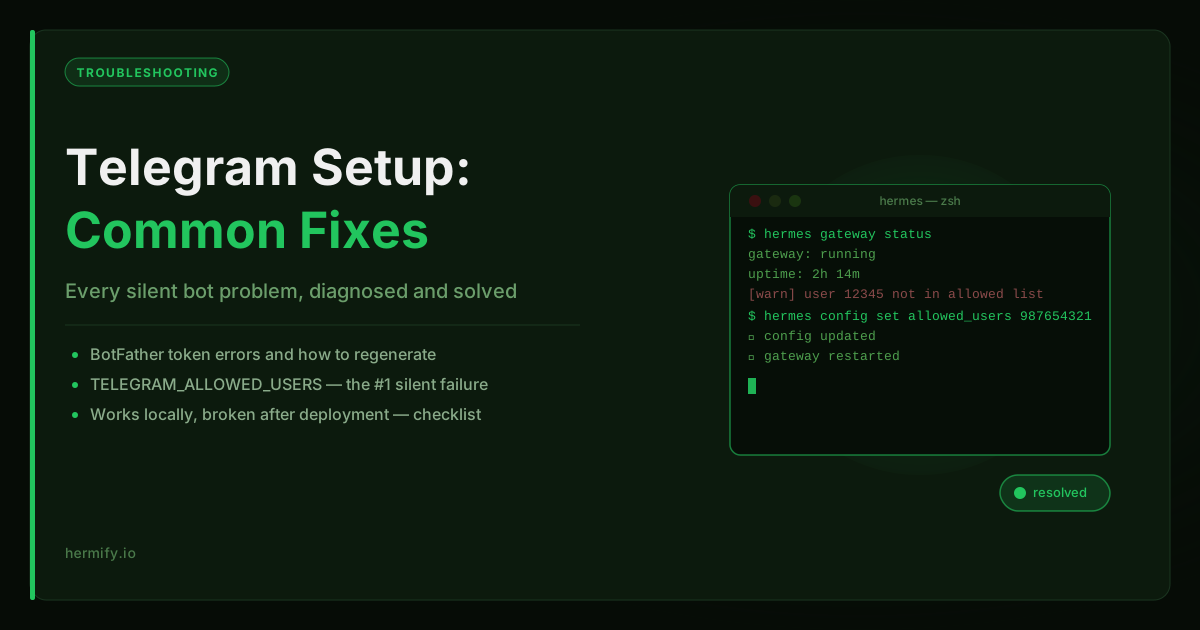
Telegram Is Where Most Hermes Deployments Get Stuck
Most Hermes Agent Telegram failures come down to four things: an invalid bot token, an allowed-user mismatch, a gateway that is not running, or storage that does not persist. Check those in that order and you will resolve the common silent-bot and missing-context problems without guessing.
This guide covers the most common issues in the order they typically appear.
Getting the Telegram Bot Token
The token comes from BotFather, Telegram's official bot management interface. This step seems simple but has a few failure modes.
How to get it right:
- Open Telegram and search for
@BotFather. - Send
/newbot. - BotFather asks for a name (display name) and a username (must end in
bot). - After creation, BotFather sends you a message containing the token. It looks like
7123456789:ABCDef.... - Copy the full token including the colon and everything after it.
Common mistakes:
- Copying only the numeric ID, the token is the full string after the colon, not just the number before it.
- Using a test bot from a development environment, if you created a bot months ago and forgot which token goes with which bot, BotFather can show you existing bots with
/mybots. You can then revoke and regenerate tokens. - Spaces or line breaks in the pasted token, some copy flows add whitespace. Paste into a plain text editor first to verify the token is clean before using it.
The TELEGRAM_ALLOWED_USERS Configuration
This is the most commonly misconfigured part of a Hermes Telegram deployment.
Hermes requires you to specify which Telegram user IDs are allowed to send messages to the bot. Without this, the bot will not respond to anyone. With an incorrect value, the bot will not respond to you even though it appears to be running.
What you need:
A Telegram user ID is a number, not a username. @username is not what Hermes wants. You need the numeric ID, which looks like 123456789.
How to get your Telegram user ID:
Open Telegram, search for @userinfobot, and send /start. It will reply with your user ID.
How to configure it:
In config.yaml:
telegram_allowed_users: "123456789"
For multiple users, use a comma-separated list:
telegram_allowed_users: "123456789,987654321"
Hermify note: In Hermify's onboarding flow, you enter your Telegram user ID (or a comma-separated list) in the credentials form. This is separate from the bot token field. Both are required.
Problem: The Bot Does Not Respond at All
If you send a message to your bot and nothing happens, work through this checklist:
1. Is the Hermes gateway running?
hermes gateway status
If the gateway is not running, the bot has no listener. Start it:
hermes gateway start
2. Is your user ID in the allowed list?
Double-check the telegram_allowed_users config. This is the most common cause of a silent bot. The process is running, the gateway is connected, but Hermes is deliberately ignoring your messages because your ID is not on the list.
3. Did the bot token expire or get revoked?
BotFather lets you revoke tokens. If you regenerated the token after adding it to Hermes, the old token no longer works. Check BotFather with /mybots, select your bot, go to API Token, and verify the token in your config matches.
4. Is the bot already in a different chat?
Telegram bots respond to the specific chat they receive messages in. If you previously added the bot to a group and Hermes is configured to respond to group messages differently, you may need to start the conversation in a direct chat (DM) with the bot.
Problem: "Unauthorized" Error in Logs
This error means the token is either invalid or has been revoked. The fix is always to regenerate the token in BotFather and update your Hermes configuration with the new value.
In BotFather:
- Send
/mybots. - Select your bot.
- Go to API Token → Revoke current token.
- Copy the new token.
- Update
config.yamlor the Hermify dashboard credentials form. - Restart Hermes (or the Hermify runtime).
Problem: Bot Responds Once, Then Goes Silent
This usually means the Hermes process stopped or the gateway disconnected. Common causes:
The process was killed. On local deployments or cheap shared hosting, processes get killed when memory is tight or when the host recycles containers. Check your process logs for a crash or OOM (out of memory) event.
WSL2 session ended. If you are running Hermes inside WSL2, closing the terminal stops the process. See the WSL2 guide for running Hermes persistently.
The Telegram polling loop timed out. The Hermes gateway uses long-polling to receive Telegram messages. Occasionally the connection drops and is not automatically re-established. Restarting the gateway (hermes gateway restart) fixes this.
A model error caused a crash. If the LLM API returned an error (rate limit, quota exhaustion, bad response), some versions of Hermes may exit the session rather than recovering. Check the terminal output or logs for a recent error message before the silence started.
Problem: Messages Come Through But Agent Ignores the Content
This is different from a silent bot. The bot is receiving messages but the agent's responses seem wrong or empty.
Most likely cause: the model context window is full. Hermes reads your MEMORY.md and conversation history into every prompt. If the combined context is too long for the model's window, the model receives a truncated prompt and the response quality degrades or becomes empty.
Fixes:
- Switch to a model with a larger context window (Claude and Gemini support 128k+).
- Trim your
MEMORY.mdmanually if it has grown very large. - Use
hermes memory compactif available in your version to summarize and compress memory.
Less likely cause: the allowed users list is a substring match issue. If your allowed users config contains 12345 and your actual user ID is 123456789, Hermes will not match correctly. Verify the full numeric ID, not a truncated version.
Problem: Works Fine Locally, Broken After Deployment
The most common cause here is a mismatch between the environment you tested in and the server environment.
Check these things in order:
- Token is correct in the server config, not the local config. It is easy to update the wrong file.
- The server can reach Telegram's API. Some hosting providers block outbound connections. Test with
curl https://api.telegram.org/bot<YOUR_TOKEN>/getMefrom the server. - The Hermes process started successfully. Check the container or process logs for startup errors.
- Memory directory is mounted. If you are using Docker, confirm the data volume is attached. An agent that starts without its data directory will behave strangely.
Skipping This Entirely with Managed Hosting
The reason most people hit Telegram configuration issues is that they are managing the deployment themselves, dealing with tokens, config files, processes, and server environments simultaneously.
Hermify is specifically designed around this problem. The onboarding flow handles the Telegram wiring: you provide the bot token and allowed user IDs once, and the platform stores them encrypted, injects them into the runtime, and manages the gateway process.
If the bot stops responding on Hermify, you do not debug the gateway, you check the status card in the dashboard and trigger a restart if needed. The operational loop is dashboard-based, not SSH-based.
That is the main thing managed Telegram hosting changes: not the Telegram configuration itself, but who is responsible for keeping it healthy. You can compare this approach directly against a self-managed VPS setup in the hosting vs self-hosting comparison.
Run Your Own Hermes Agent
Bring your API key, connect Telegram, and get a self-improving AI agent live in 60 seconds.
Get Started