Running Hermes Agent on Windows with WSL2
Hermes Agent does not support native Windows. This is the complete guide to running it through WSL2, what works, what does not, and when managed hosting is the better option.
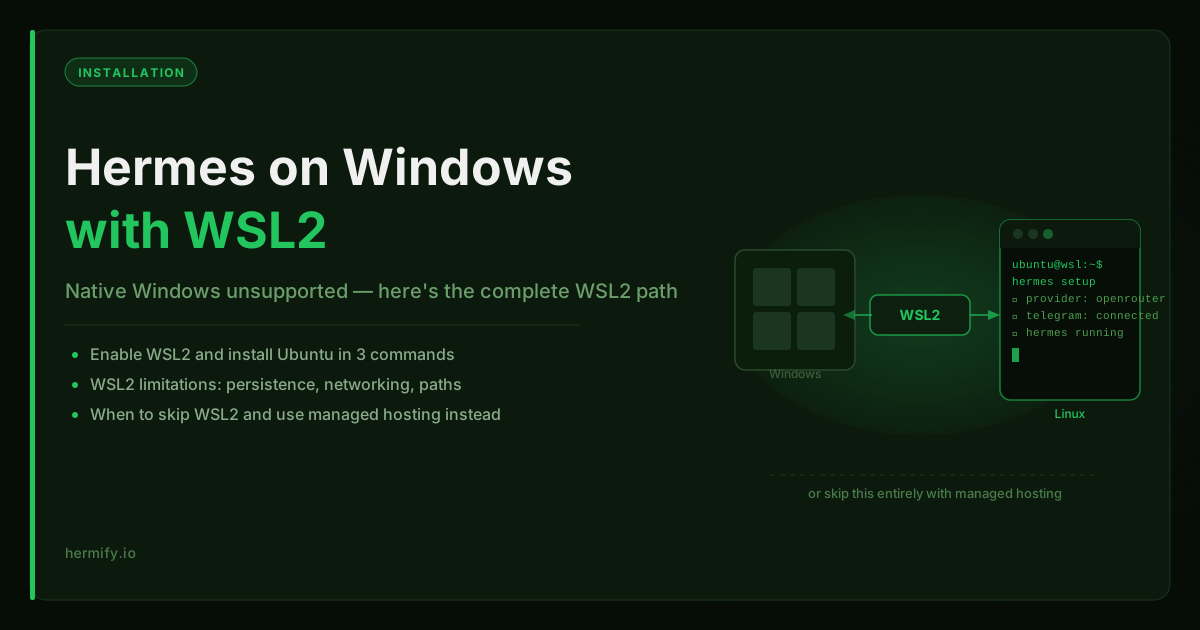
Hermes Agent Does Not Support Native Windows
If you are on Windows and trying to install Hermes Agent, you will hit a wall quickly. The official Hermes documentation states plainly: native Windows is not supported. The supported platforms are Linux, macOS, WSL2, and Android via Termux.
This is not a gap that is likely to close soon. Hermes uses shell tooling, process management, and file system conventions that are Linux-native. The correct Windows path is WSL2, the Windows Subsystem for Linux 2, which gives you a real Linux kernel running inside Windows.
This guide walks through the full WSL2 setup for Hermes Agent and explains where the friction appears after the first successful run.
What WSL2 Actually Is
WSL2 is not an emulator or a compatibility layer. It runs a real Linux kernel in a lightweight virtual machine. From inside a WSL2 shell, you have a proper Linux environment: filesystem, process table, package manager, and networking.
For Hermes, this means everything that works on a Linux server also works in WSL2, with a few caveats around networking and persistence that we will cover below.
Microsoft ships WSL2 with modern Windows 10 (build 1903 and later) and Windows 11. If your Windows is reasonably current, you already have access to it.
Step 1: Enable WSL2
Open PowerShell as Administrator and run:
wsl --install
This command enables the WSL feature, installs the default Linux distribution (Ubuntu), and sets WSL2 as the default version. It requires a reboot to complete.
If you already have WSL1 installed and want to upgrade to WSL2:
wsl --set-default-version 2
Then check which version your distribution is using:
wsl --list --verbose
Look for the VERSION column. You want 2.
Step 2: Set Up Ubuntu in WSL2
After the reboot, open Ubuntu from the Start menu. The first launch walks you through creating a Unix username and password. This is your WSL2 user, separate from your Windows account.
Update the package list and upgrade installed packages:
sudo apt update && sudo apt upgrade -y
Install curl and other basics Hermes will need:
sudo apt install -y curl git build-essential
Step 3: Install Hermes Agent Inside WSL2
With a working Ubuntu environment, install Hermes using the official install script:
curl -fsSL https://hermes-agent.nousresearch.com/install.sh | bash
After installation, run the setup:
hermes setup
This walks you through provider selection, model configuration, and optional Telegram setup. Choose OpenRouter for the simplest first run, you will need an OpenRouter API key ready.
After setup completes, start Hermes:
hermes
If you see the terminal interface, your WSL2 installation is working.
Step 4: Telegram Configuration in WSL2
Getting Hermes on Telegram inside WSL2 requires a few extra steps compared to a native Linux server.
The Hermes messaging gateway needs to stay running to receive Telegram messages. In WSL2, the process runs as long as the WSL2 session is open. If you close your terminal, the gateway stops, and Telegram messages will not be delivered.
To keep the gateway running in the background:
hermes gateway start --detach
Check that it is running:
hermes gateway status
If you want the gateway to start automatically when WSL2 starts, you can add it to your ~/.bashrc or set up a systemd service (WSL2 supports systemd in recent versions on Windows 11).
Known Limitations of WSL2 for Hermes
Memory and state do not survive WSL2 shutdowns. By default, WSL2 terminates when you close the last session. Running processes stop. If Hermes is receiving Telegram messages or running scheduled tasks, they will be interrupted. You need to restart Hermes and the gateway every time WSL2 starts.
Networking is bridged, not native. WSL2 creates a virtual network adapter. Your Hermes instance does not have a stable IP address from the internet's perspective. This matters if you are building integrations that need to receive webhook traffic, but it does not affect outbound Telegram or model API calls.
File path friction. WSL2 has its own Linux filesystem (\\wsl$\Ubuntu\home\... on Windows). If you want to share files between WSL2 and Windows applications, you can mount Windows paths inside WSL2 (/mnt/c/...). Hermes memory files and config live in your WSL2 home directory by default, which means they are not directly accessible from Windows Explorer without using the network path.
Performance on Windows paths. If you store Hermes files on the Windows filesystem (under /mnt/c/), file operations will be slower than if they are on the WSL2 filesystem. Keep Hermes data in the Linux home directory for better performance.
Requires leaving WSL2 open. For Hermes to be continuously available on Telegram, your WSL2 terminal needs to stay running. This is the biggest operational constraint for Windows users who want a persistent agent.
When Managed Hosting Is the Better Choice for Windows Users
For most Windows users, WSL2 works well enough for evaluation and learning. The problems appear when you want persistent, always-on Hermes availability.
WSL2 is a developer tool, not a server. Keeping it running continuously means your Windows machine has to stay on, the WSL2 session cannot close, and you are responsible for restarts when Windows updates force a reboot.
If you want Hermes available on Telegram 24 hours a day without your local machine running, you have two options:
- Rent a Linux VPS and run Hermes there instead of locally.
- Use managed hosting like Hermify, where the runtime lives on a persistent server and you interact with it over Telegram and the dashboard.
The second path requires no Linux knowledge, no VPS management, and works from Windows without WSL2 at all. You install nothing locally, Hermify handles the runtime on your behalf. The Telegram bot stays available because it is running on a real server, not on your laptop.
This is the path most Windows users take when they move past evaluation and want Hermes as a real daily assistant.
A Practical Decision Framework
| Scenario | Recommendation |
|---|---|
| Testing Hermes for the first time on Windows | WSL2 is fine |
| Building custom tooling or contributing to Hermes | WSL2 on a development machine |
| Want Hermes on Telegram available all day | Managed hosting (Hermify) or a Linux VPS |
| Want to skip Linux setup entirely | Managed hosting |
| Already running Linux locally or on a server | Native Linux, no WSL2 needed |
WSL2 is not the wrong tool, it is the right tool for development. For persistent production use, a server-side runtime is more reliable. You can explore how managed Hermes hosting compares to a self-hosted VPS setup if you want to evaluate the options side by side.
Run Your Own Hermes Agent
Bring your API key, connect Telegram, and get a self-improving AI agent live in 60 seconds.
Get Started